


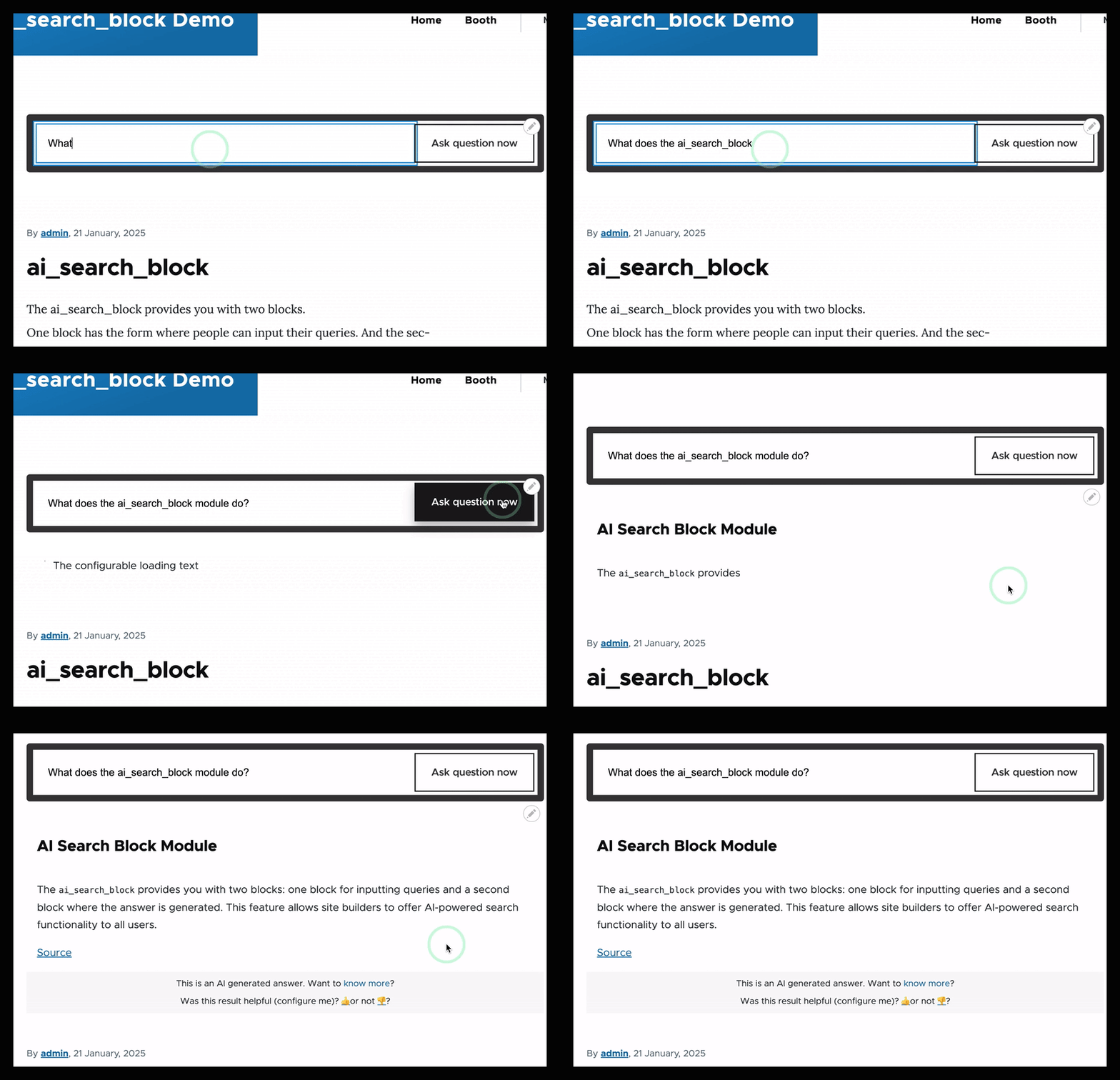
AI Powered Search Block gives you AI powered search with configuration instead of code. Place two blocks on a page, point them at a Search API index backed by a vector database, and visitors get answers written from your own content, with links to the sources.
What you get
- AI Search block: the question input, with streaming answers.
- AI Search Response block: renders the streamed answer, so you decide
where on the page the answer appears. - A configurable RAG prompt, retrieval settings such as score threshold and result count, the chat model to use, and the rendered view mode used for sources.
Submodules
AI Search Block Log
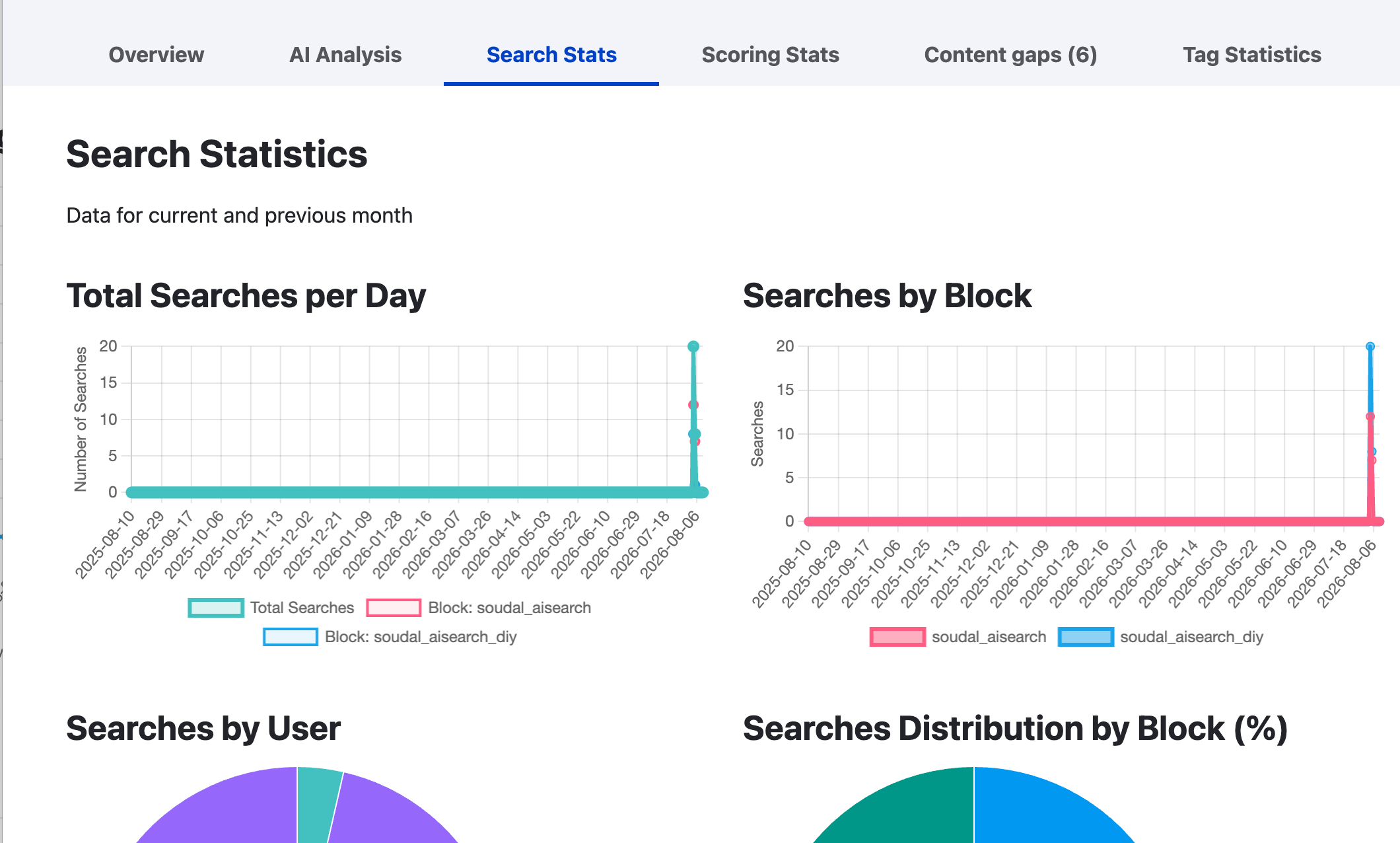
Logs every question, the answer that was given, the prompt that produced it and the sources that were retrieved. Visitors can rate an answer and leave feedback, which is stored with the log entry. Reports show searches per day, per block and per user, scoring statistics, and an AI analysis of what people are asking.
AI Search Block Log Tag
Classifies logged questions with your own tags, using a fast model and a prompt you control. Each block gets its own tag list, so a professional and a consumer block can use different vocabularies. The prompt supports three tokens:
[user_question], [user_answer] and
[configuration_tags].
Tagging runs in a queue, so it never slows down a search. Existing logs can be tagged in bulk, and re-tagging is safe to repeat: a log's tags are replaced rather than duplicated.
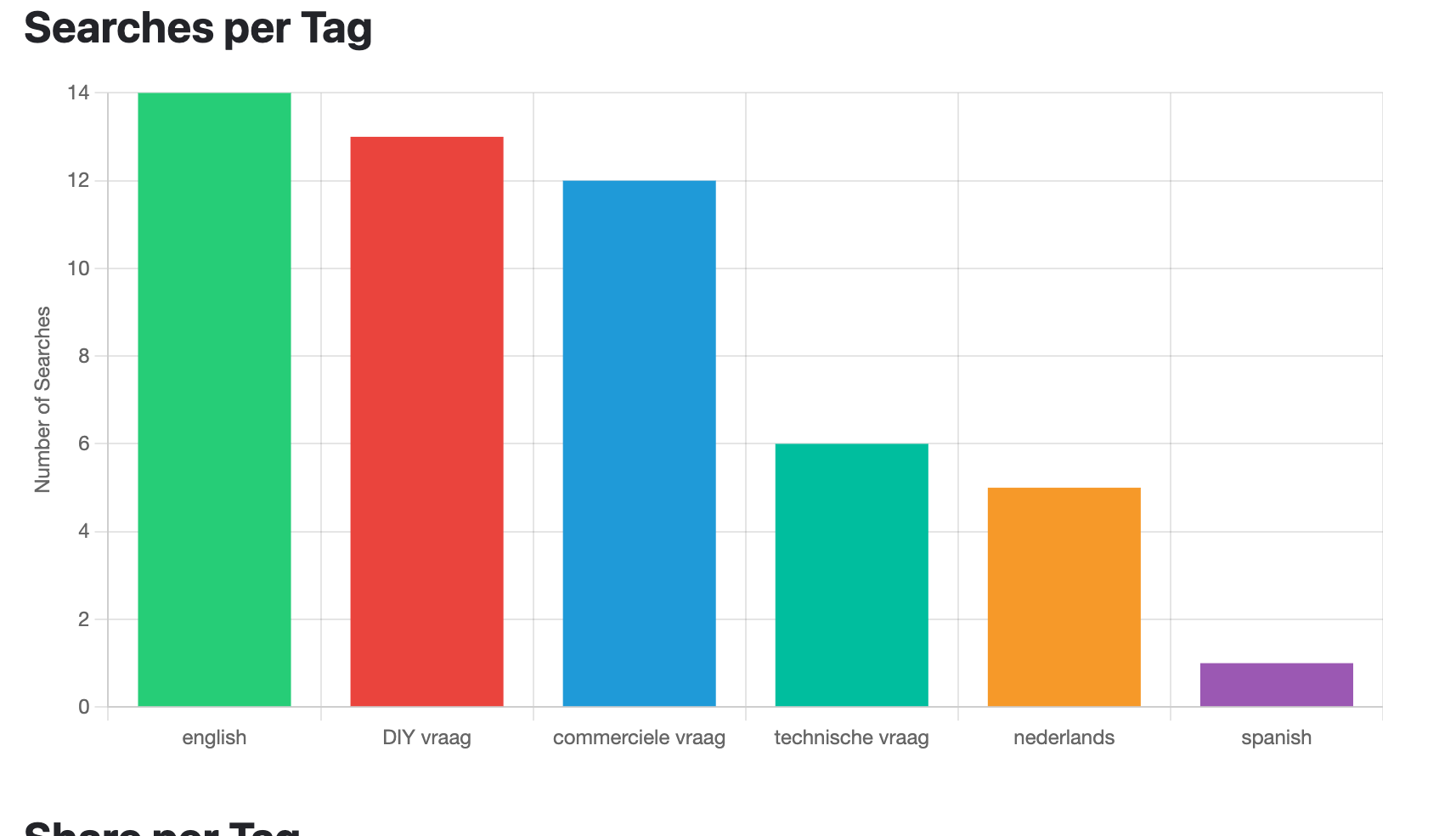
The statistics page reports the number of questions, how many carry tags, and every configured tag with the number of questions it was applied to, so a tag that never matches is easy to spot. Each block then has its own page with three charts: searches per day by tag, searches per tag, and the share per tag.
AI Search Block Content Gaps
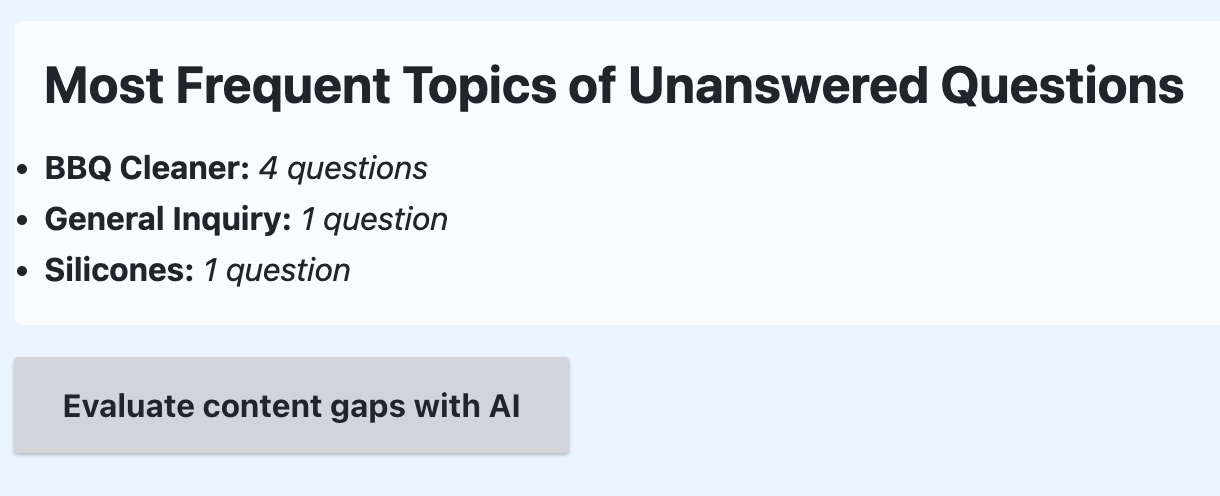
Collects the questions your content could not answer, newest first, and links each one to its log entry so you can read the answer and the sources that were retrieved. One button asks the AI to group those questions into topics, which turns a list of failures into a short content plan.
Other submodules
- AI Search Block Header: a header search form that redirects to the AI search page and runs the query automatically.
- AI Search Block Extras: extra interface options, configurable on an admin screen.
- AI Search Block Contact Centre: composes, classifies and generates responses for customer email.
Requirements
- The AI module, configured with an embedding model and a chat model.
- A vector database provider, for example Postgres pgvector
or Milvus. - A Search API index with your content embedded in that vector database.
Getting started
- Install and configure the AI module with an embedding model and a chat model.
- Create a Search API server that uses the AI Search backend, pick a vector database and a collection name, then create an index and mark one field as
Main content. Without that, indexing reports success while nothing is embedded. - Index your content.
- Place the AI Search block and the AI Search Response block on a page, and select the index on the search block.
- Optionally enable the logging, tagging and content gaps submodules.
| Attachment | Size |
|---|---|
| Screenshot 2025-01-21 at 09.14.43.png | 35.08 KB |
| Screenshot 2025-01-21 at 09.16.18.png | 125.23 KB |
| Screenshot 2025-01-21 at 09.24.27.png | 31.68 KB |
| Screenshot 2025-01-21 at 09.27.20.png | 152.8 KB |
| Tagging of questions by users and stats on them | 96.95 KB |
| Stats on searches on the site. | 353.25 KB |
| Identifying what questions users ask that are not answered. | 69.51 KB |
Project information
- Project categories: Artificial Intelligence (AI), Site search
- Ecosystem: AI (Artificial Intelligence), Search API
 90 sites report using this module
- Created by wouters_f on , updated
 Stable releases for this project are covered by the security advisory policy.
There are currently no supported stable releases.
Releases
Development version: 1.0.x-dev updated 12 Aug 2026 at 08:33 UTC


