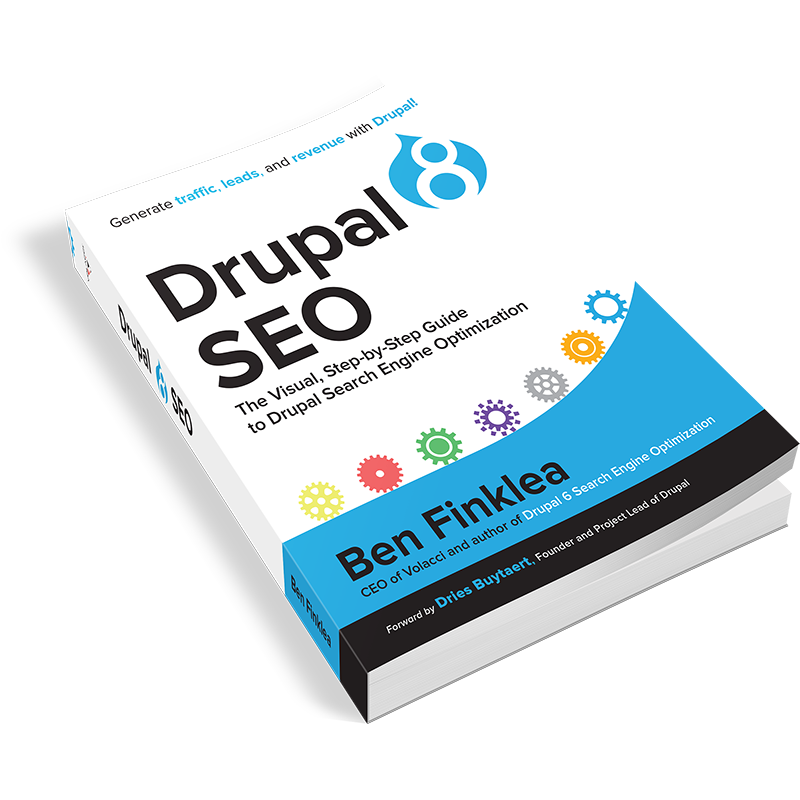
Drupal 8 is great for SEO…if you know which modules to install and exactly how to configure them. That’s where Drupal 8 SEO comes in. With over 150 images to guide you every step of the way, this book delivers the knowledge you need to get your site listed and ranking high in the search engines.
Learn how to Search Engine Optimize your Drupal 8 website with this visual, step-by-step guide. Get the exact modules, settings, and configurations your site needs to get the best possible rankings in Google and other search engines.
Drupal 8 SEO is a brand new offering from Ben Finklea that will teach marketers and developers what’s needed to make Drupal 8 deliver perfectly optimized web pages. Generate traffic, leads, and revenue like never before with Drupal.
Created to accompany the Drupal 8 SEO Checklist module, this book takes you through the exact steps that Ben has used for years to get top results for both national brands and small companies. It explains the SEO process created by the experts at Drupal SEO agency, Volacci, and how it can be used by any organization large or small to grow traffic, leads, and revenues. The process covers:
• Drupal 8 SEO Checklist
• Tools to do SEO faster
• Redirects
• URLs and paths
• Title tags and Metatags
• XML Sitemaps
• Setting up Google Analytics the right way
• Schema.org for enhanced Google listings
• Better internal linking
• Validating HTML and CSS
• Fixing broken incoming links
• Page-by-page keyword optimization
• Figuring out what worked in Google
• How to secure and speed up Drupal for higher rankings
• Mobile ranking with AMP
• Social link building with AddToAny
• …and more!
Heavy on how-to and light on long explanations, this book is for the marketer or site owner who wants to hit the ground running without a lot of reading or time spent learning SEO basics.
With over 150 images to guide you every step of the way, Drupal 8 SEO delivers the knowledge you need to get your site listed and ranking high in the search engines.
Still not sure if you need this book? If at least 3 of these are true, this book is for you:
1. You’ve got a Drupal 8 website. Either you took it over, your company built it, or you’re about to launch a new endeavor and Drupal 8 is the right technology you need to get the job done.
2. You need a Drupal 8 SEO shortcut. This book is the shortcut to getting your Drupal 8 website optimized, ranking, and working for your business.
3. You already use the Drupal 8 SEO Checklist module. I created this book to be a supplement to the SEO Checklist module for Drupal 8. If you’re already using the module, this book is for you.
4. You’ve invested a lot in Drupal 8 already. All the hard work your team has done to create a great website will go to waste if you don’t generate a steady flow of customers ready to buy, sign up, or join.
5. You’re not looking for an SEO education. This book is short on SEO “whys” and long on Drupal 8 “how-tos”. Instead of rehashing common SEO concepts, I’ve linked to trusted online resources that explain the basics.
6. You’ve SEO’d another platform and need to SEO Drupal. Drupal does SEO differently. This book will empower you to be more productive and successful using Drupal best practices (also known as The Drupal Way).
7. You can implement a solid SEO strategy yourself. This book will help you implement that strategy.
8. You need to rank in the search engines. Ranking well in Google matters. A lot. It’s not an afterthought - or at least it shouldn’t be - it’s at the forefront of your mind as a marketer.
9. Winning matters to you. Companies that rank well in Google win. Companies that don’t rank are not even in the running - it’s just that simple.
10. You’re a visual person. They say a picture is worth a thousand words so there are over 150 Drupal 8 screenshots in this book. My goal is for you to see exactly what to do, where to click, and how things work.
If you’re ready for results with the minimum of hassle, Drupal 8 SEO will lead the way to a successful SEO marketing campaign on your website.