Drupal is an open source web-based content management system (CMS) that can be used for building anything from simple websites to complex applications. It enables individuals and organizations to build platforms that engage users and deliver the right content at the right time.
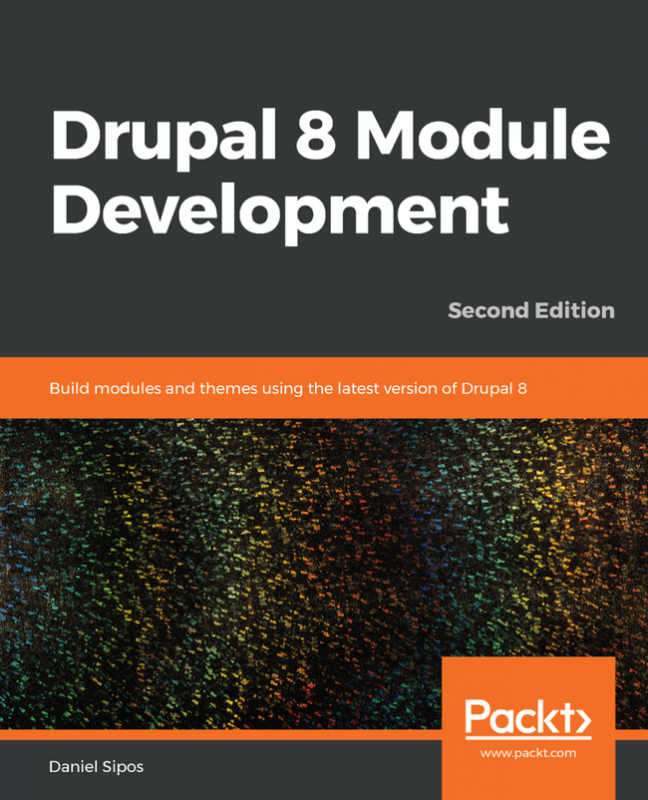
Drupal 8 is an exciting new development in the Drupal community. However, the differences from the previous version are substantial and this can put quite some pressure on Drupal 7 developers that need to catch up. This book aims to help such developers in getting up to speed with Drupal 8 module development.
The book first introduces you to the Drupal 8 architecture and its subsystems before diving into creating your first module with basic functionality. Building upon that, you will cover many core APIs and functionalities available to module developers.
You will work with the Drupal logging and mailing systems, learn how to output data using the theme layer, and work with menus and links programmatically. Then, you will learn how to work with different kinds of data storages, create custom entities, field types, and leverage the Database API for lower level database queries. Moreover, you will learn about the Drupal 8 access system and caching layer as well as the APIs used for data processing (queues and batches).
You will further see how to introduce javascript into your module, work with the various file systems, and ensure the code you write works on multilingual sites. Finally, you will learn how to programmatically work with Views, write automated tests for your functionality, and also write secure code in general.
By the end of the book, you will have learned how to develop your own custom module from scratch that can help solve a small problem or even provide complex functionality. And who knows, maybe you’ll even contribute it back to the Drupal community.