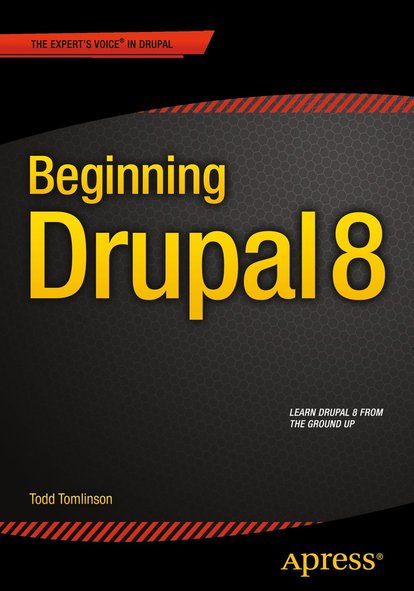
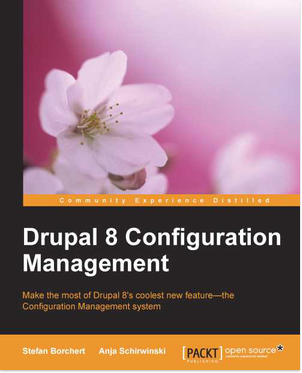
Beginning Drupal 8 teaches you how to build, maintain, and manage Drupal 8-based web sites. The book covers using Drupal when building a new web site, what Drupal is, installing and configuring Drupal, creating and managing content, managing users, adding functionality to your web site through Drupal modules, and more advanced topics on using themes, panels, and views. The book also builds practical examples of common Drupal sites, such as a company website, a community website, and a commerce website, that you can take and expand on to create your own Drupal 8 sites.
By reading this book, you will understand the power of the Drupal platform, and why you should be using Drupal if you're not already. Through following the samples in the book, you will quickly build your confidence and your ability to use Drupal. Beginning Drupal 8 gives you the knowledge necessary to build, deploy, and manage web sites of moderate complexity on Drupal 8.
What you’ll learn
- What Drupal is and why you should use it
- How to install a basic Drupal web site from scratch
- How to create content in your new Drupal web site
- How to manage users on your new Drupal web site
- How to change the look and feel of your new Drupal web site through themes
- How to install and configure modules
Who this book is for
This book is for nontechnical users who need to use Drupal 8 to manage content, as well as developers who are new to Drupal 8.
Table of Contents:
- Introduction to Drupal
- Creating and Managing Content
- Creating and Managing Users
- Creating and Using Taxonomy
- Creating Content Types
- Creating and Using Views
- Creating and Using Page Payouts
- Creating and Using Menus
- Creating and Using Blocks
- Theming Your Site
- Making Your Site Responsive
- Extending Your Site Through Contributed Modules
- The Anatomy of a Module
- Using Multilingual
- Administering Your Drupal Site
- Using Drush
- Using Git
- Putting It All Together
- Building a Blog Site
- Building a Company Website
- Building a Community Website
- Building a Commerce Website
App A: Modules
App B: Learn More